
New Feature: Skip a Run, or Let the AI Plan the Day

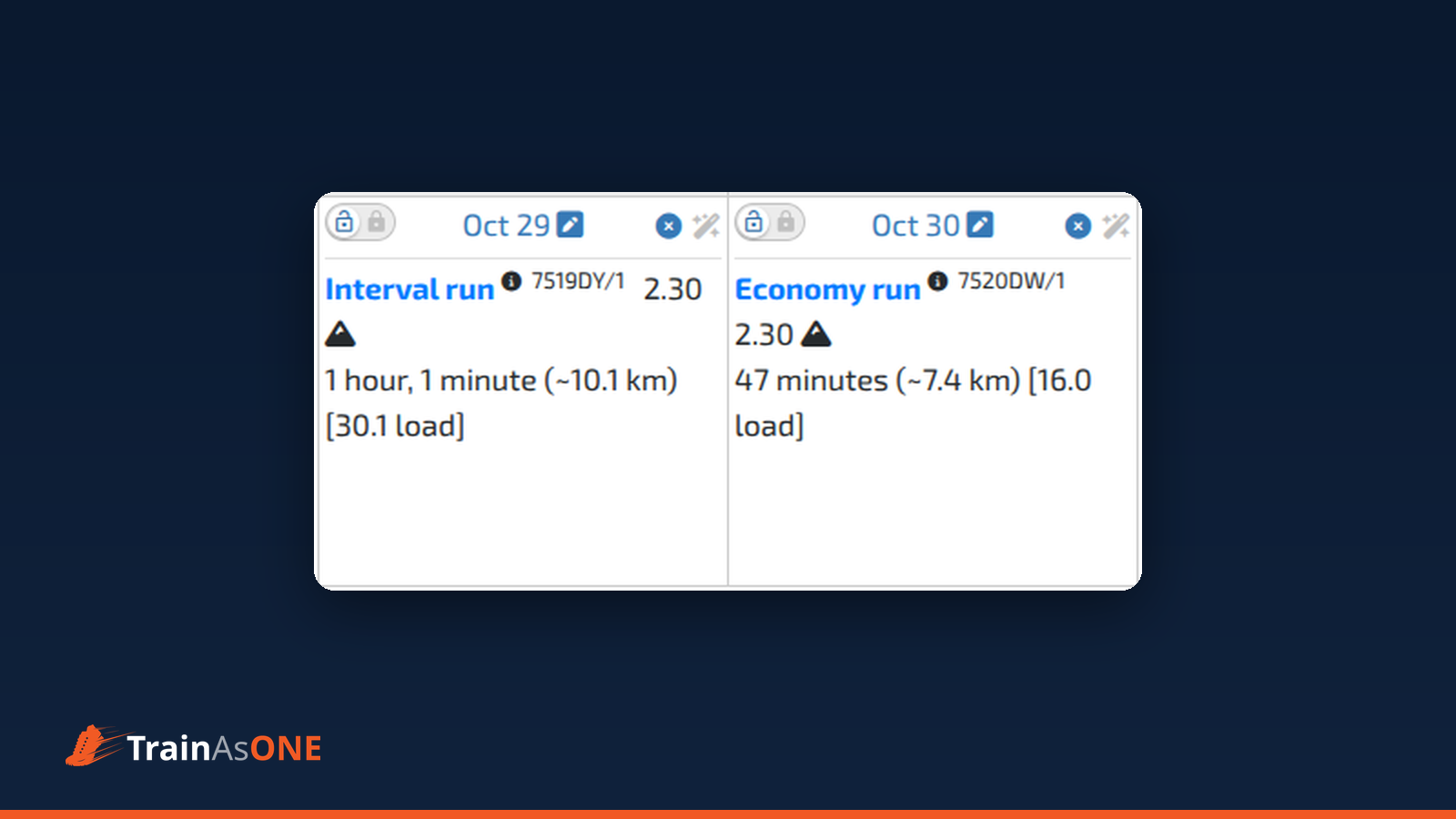
Life does not always follow the plan — and sometimes you want the plan to follow life. Two new quick actions let you make a single day's decision without touching the rest of your schedule: mark a day as a no-run day, or hand a day back to the AI.
"I cannot run on this day" — a quick skip
Sometimes a run simply is not going to happen: an unexpected meeting, travel, feeling under the weather, or just needing one more easy day.
- On your Training Calendar, find the day and click the "I cannot run on this day" icon (filled blue circle with an X) next to the date.
- Confirm the prompt: "Make {day} a no-run day?" — click Yes.
The day immediately becomes a rest day. TrainAsONE does not rebuild your whole plan for this — it simply removes the run from that date, leaving the rest of your plan alone. Your recurring weekday defaults (for example, a Parkrun every Saturday) are untouched.
You can do the same from the Next Workout card on your Dashboard, which carries the same button in its bottom bar.
"Let TrainAsONE plan this day" — hand a day back to the AI
The reverse case: you have a custom workout fixed on a date, but this week you would rather let the AI decide — perhaps you are feeling fatigued and it might prescribe an easier session, or even a rest day.
- On the Training Calendar, click the "Let TrainAsONE plan this day" icon (magic wand) next to the date.
- Confirm the prompt: "Instruct TrainAsONE to plan the workout (or rest day) for {day}?" — click Yes.
Any custom workout you had set for that date is removed, and TrainAsONE plans the day from your current fitness, fatigue and goals. Unlike a skip, this does trigger a plan update.
Note: this action is only available when the day holds a custom workout (or is set as a no-run day). It is disabled if the AI is already planning that day freely, or if your training algorithm is set to External Schedule, where TrainAsONE does not generate workouts.
Where to find them
- Training Calendar: both icons sit next to each day's date.
- Dashboard: the Next Workout card's bottom bar carries both buttons.
They work inside a rolling lock
Your explicit, day-by-day decision takes precedence over an automatic rolling lock: a skip, or a "let the AI plan", on a day inside the rolling window is respected for the next plan update — and the rolling lock itself is left untouched. (See What is a rolling lock and how do I release it?.)
Per-date override, or a permanent change?
Both actions are per-date overrides — they apply to one day only, and your weekday defaults are unchanged. If you find yourself overriding the same weekday again and again, change your weekday default in Training Settings → Training Day Rules instead.
Lock, skip, or let the AI plan?
Three controls, three meanings:
- Lock — "keep this day exactly as it is" (no rebuild; it takes effect at your next plan update).
- "I cannot run on this day" — "I am not running today" (a local change; no rebuild).
- "Let TrainAsONE plan this day" — "AI, you decide this day" (this one rebuilds your plan).
Note: neither quick action is offered on a race day (edit or delete the race instead) or on a day whose run is already behind you (counted and analysed).
Find out more
- How do I skip a run on a specific day without changing my weekly schedule?
- How do I let TrainAsONE plan a specific day instead of my custom workout?
- What is the difference between locking a day and skipping a run?