
While TrainAsONE generates highly efficient and effective plans, sometimes you might want to run your own workout — perhaps based on a classic session you've heard about, or a favourite workout from a previous training block.
Unlike other platforms, being able to perform your own custom workouts and having them respected in the same way as TrainAsONE planned workouts is a key feature of our system. Here is how to add them:
Entering a Custom Workout for a Specific Date
Within the web application:
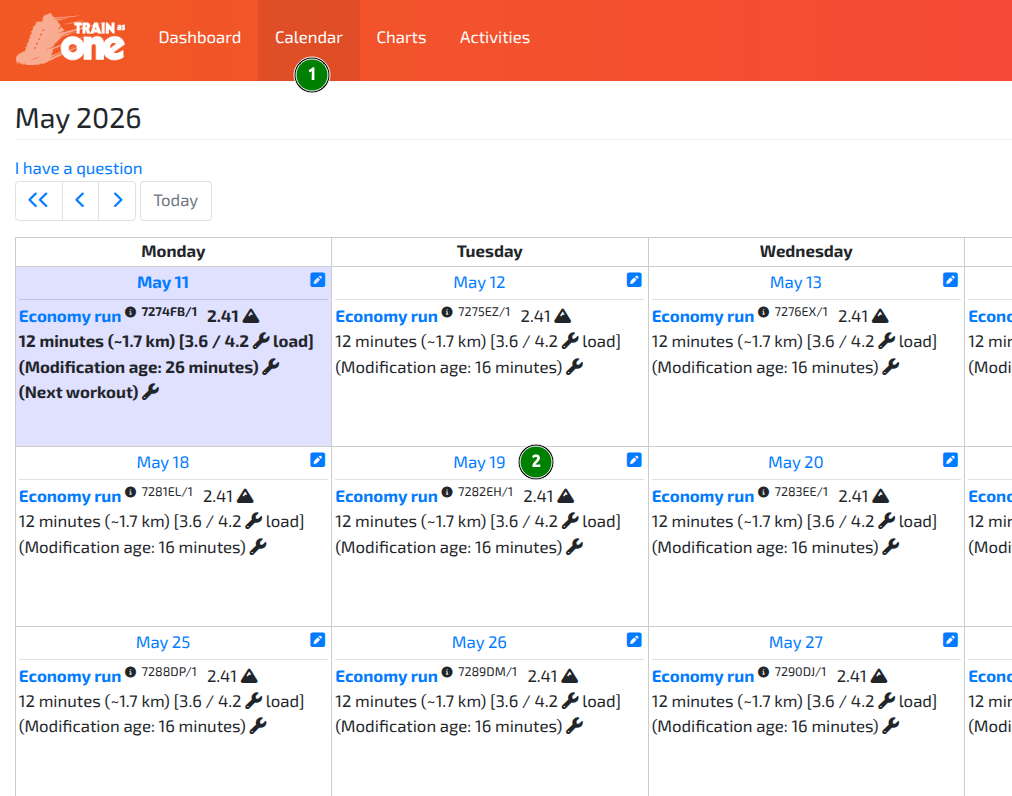
- Navigate to your Calendar 1.
- Click on the title of the day you would like to add a workout to, e.g., 'May 19' 2.
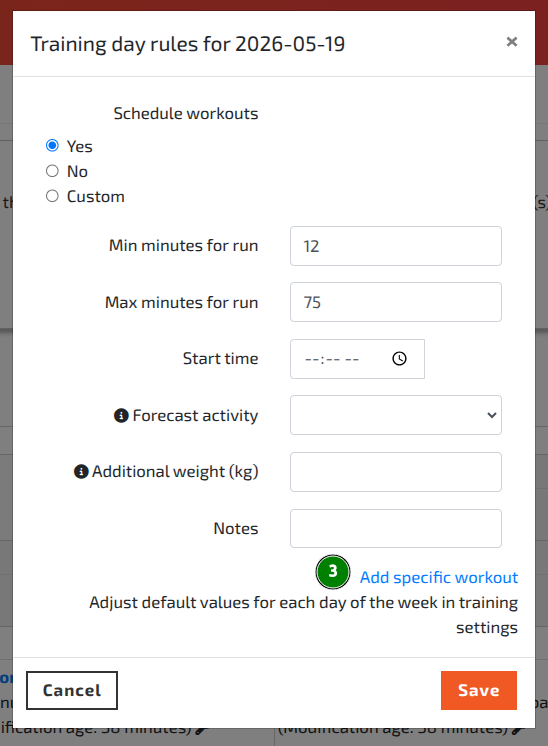
- The 'Training Day Rules' dialog for the selected date will appear.
- Click the Add specific Workout link 3.
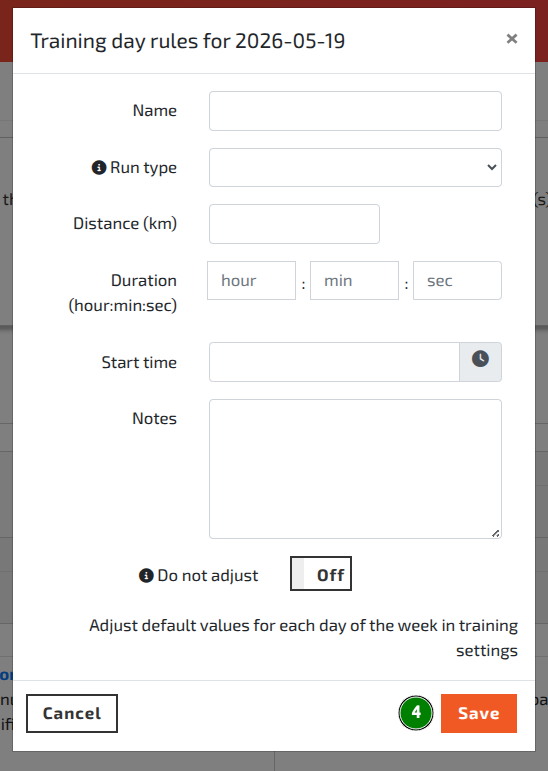
- The dialog will update to display the workout creator.
- Enter the details for your custom workout.†
- Click Save 4.
Your plan will automatically rebuild with your custom workout in place, and TrainAsONE will intelligently adjust the surrounding workouts to accommodate it.
Entering a Custom Workout to be Repeated on a Day of the Week
Within the web application:
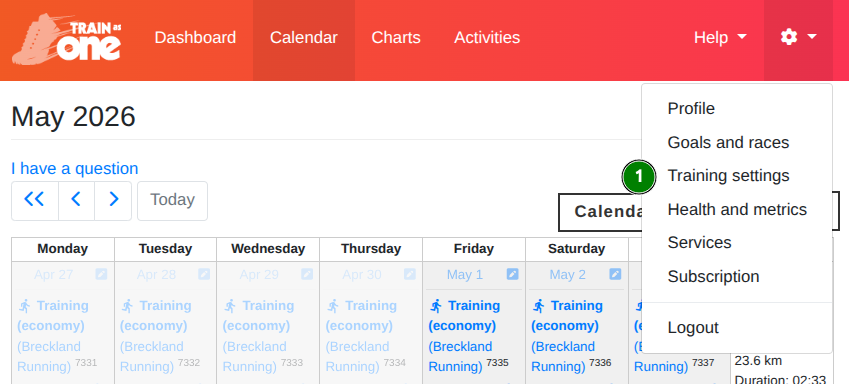
- Navigate to your Training Settings page 1.
- Click the Update training settings button 2.
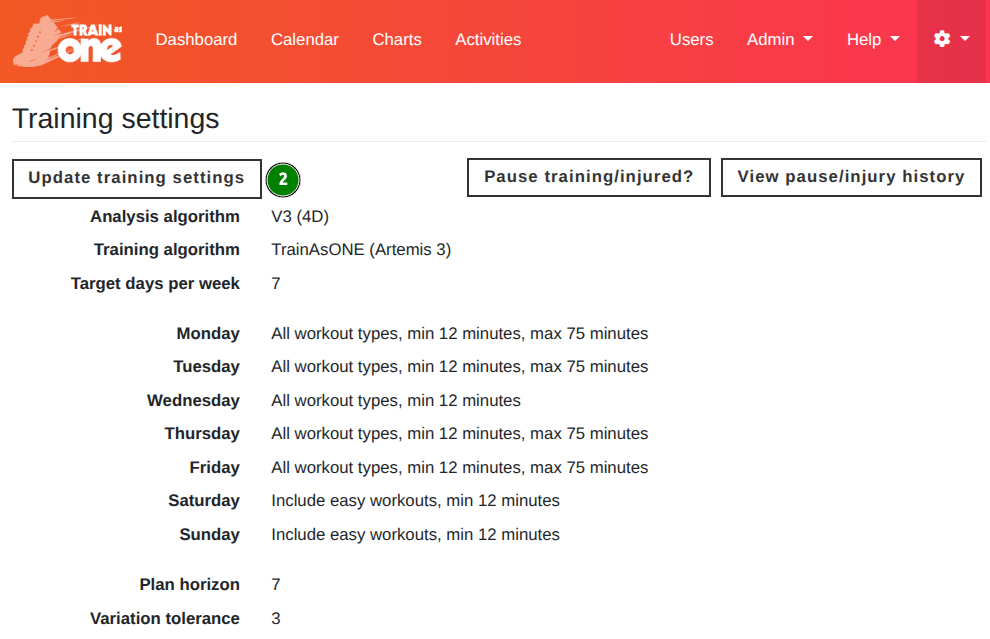
- Scroll down to the specific day of the week you would like to add a custom workout to, and click its associated Set specific workout link 3.
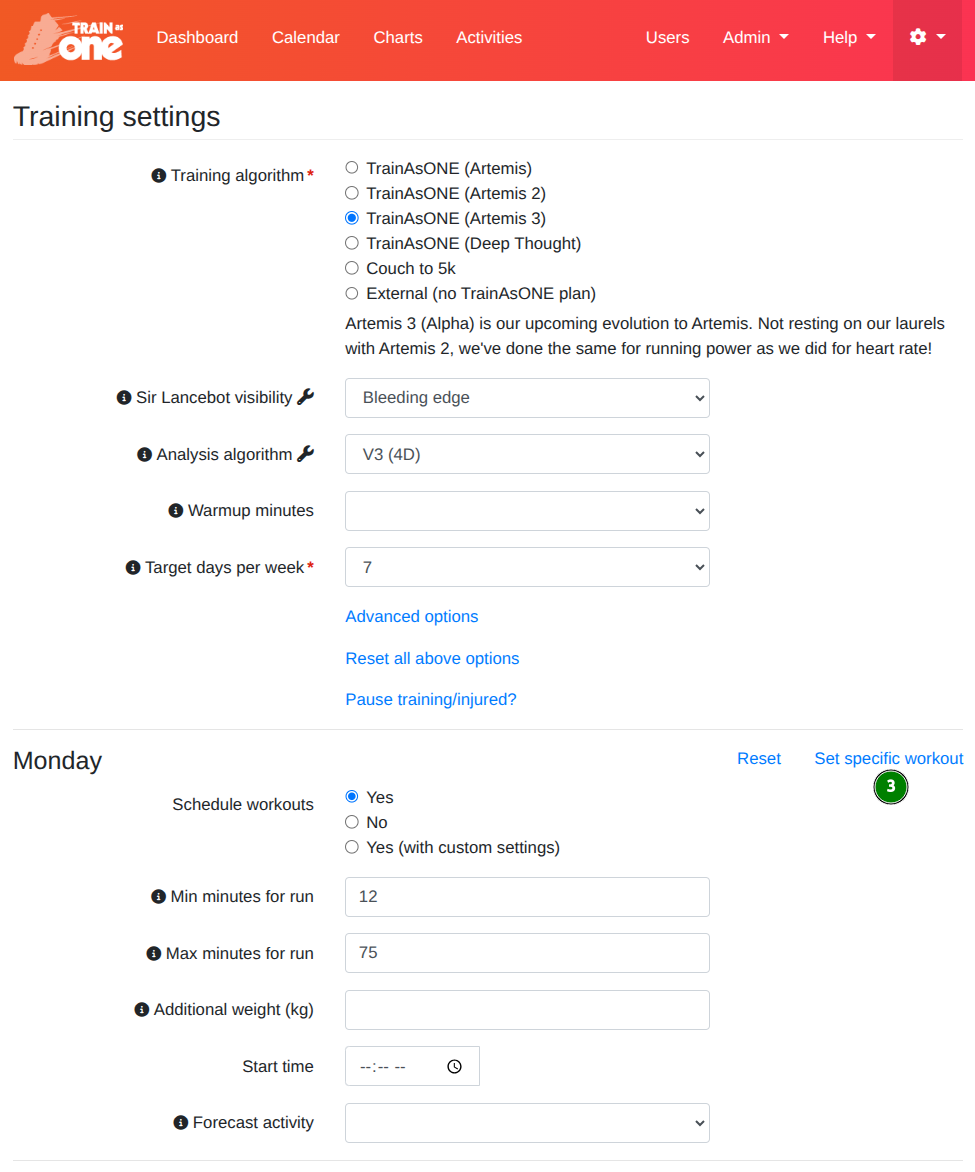
- The rules section for that day will update to display the workout creator.
- Enter the details for your custom workout.†
- Scroll to the bottom of the page and click Save.
Your plan will automatically rebuild with your custom workout scheduled for that day every week going forward, and TrainAsONE will intelligently adjust the surrounding workouts to accommodate.
† Please note that the workout creator is currently limited to entering summary values and does not yet support building full workouts with individual steps and targets. A full-featured workout builder is on our roadmap.